Web configurator
The configurator runs in your browser. Your settings and Wi-Fi password stay on your device.
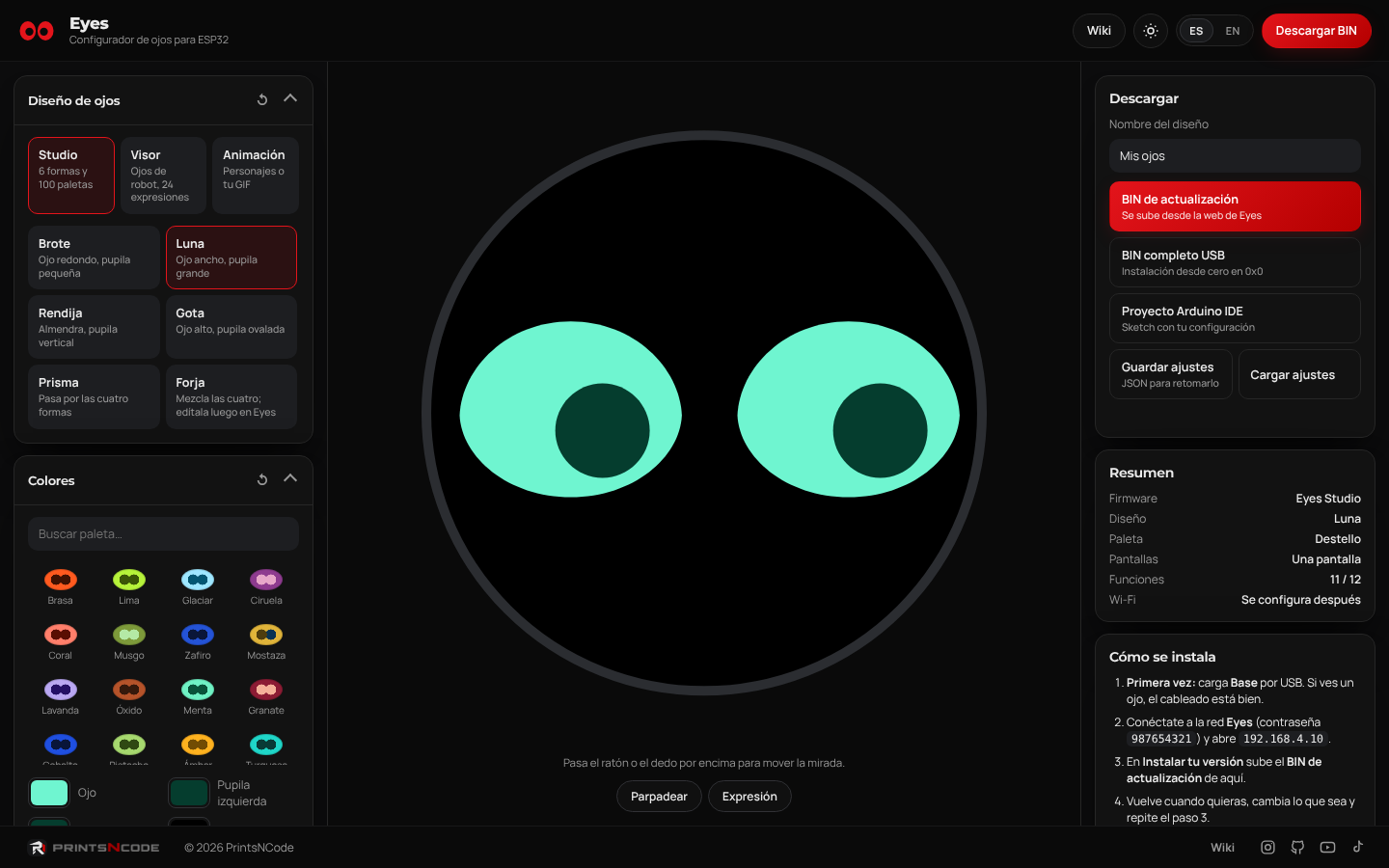
Settings are on the left, the preview in the center and downloads on the right. Use the top bar to switch language or enable the light theme. Each section has a ↺ button to restore its defaults, including colors, motion, displays, features and Wi-Fi.
Steps
- Eye design. Choose a family:
- Studio: six editions of eyes drawn in real time.
- Visor: round robot eyes with 24 expressions and a sequence.
- Animation: one gallery character, all characters in a category in random order, or your own GIF. Keep the original quality or adjust image size, frame count and colors to fit the ESP32-C3. Choose Manual to set the options yourself. The preview shows what the display will show.
- Colors. Choose from 100 Studio palettes and six Visor palettes, or set your own eye, pupil and background colors. Animation uses the colors detected in the file: background, eye, pupil and detail.
- Motion. Choose natural gaze, pointer tracking or straight ahead, along with speed, size and what appears at startup: eyes, clock, stopwatch or countdown. Set the change interval for Prisma and the Visor sequence.
- Displays. Choose one or two displays, eye arrangement and SPI speed. 40 MHz is twice the usual 20 MHz. If you see lines or unusual colors, regenerate the BIN with a lower speed.
- Features. Enable the ones you want. Click the eye icon to see available demos.
| Feature | When disabled |
|---|---|
| Clock, stopwatch and countdown | They disappear from the Content menu. |
| Live drawing | The canvas and saved drawings are unavailable. |
| Images and GIFs | File uploads are unavailable. |
| Physical joystick | Joystick pins are ignored. |
| Live view | The device page stops mirroring the display in real time. |
| Follow mouse or touch | Eyes move on their own or via joystick. |
| Edit design from the web | The design remains fixed and the page shows device controls only. |
| Connect to home Wi-Fi | Eyes only creates its own network. |
| Automatic expressions and blinks | Eyes stop doing them on their own. |
Eyes always includes its own Eyes network, configuration page, Wi-Fi updates and factory reset so you can change the firmware later.
- Wi-Fi (optional). The BIN can store your home network settings, the Eyes network name and password, and the local name (
eyes.local). You can also configure these later from the device page. - Download.
What you download
| Button | File | How to use it |
|---|---|---|
| Update BIN | eyes-studio-….bin | Eyes device page → Instalar tu versión (Base) or Dispositivo → Actualizar firmware (Studio/Visor). |
| Full USB BIN | …-usb-0x0.bin | Flash with esptool at address 0x0 without Arduino. |
| Arduino IDE project | …-arduino.zip | Unzip, open Eyes/Eyes.ino, compile and upload. |
| Save settings | ….json | Reload the settings in the configurator. The JSON excludes passwords. |
Startup intro and fixed eyes
Under Startup intro, keep the edition’s intro, skip it or create one with text, an image or both. The circle previews what goes into the BINs and Arduino project. The intro appears before your chosen startup content.
Under Motion, enable Static eyes, no animation to hold a pose in Studio or Visor, or the first frame in Animation. You can show a different image on each eye without gaze movement, blinks or file rotation.
What happens during installation
A Wi-Fi update preserves files on the board. The configurator also keeps the saved network by default. To change it, select Include new Wi-Fi settings and enter the network details. Any Eyes network fields left blank keep their existing values.
Since Eyes 2.2.0, Dispositivo → Actualizar firmware also offers Conservar el Wi-Fi del ESP32 (keep Wi-Fi), Usar los ajustes del BIN (use BIN settings) or Introducir una red nueva (enter a new network). In older versions you choose while generating the file. Use the update BIN for an update. The full USB BIN replaces the board’s flash contents.
A BIN containing your Wi-Fi password is private. Keep it out of shared files and repositories.
Momentary push button
Enable Features → Momentary push button to include it in the BIN or Arduino sketch. Each press triggers an expression. The button uses GPIO5 and GND and works with the joystick disconnected. See button wiring.
Check the size
Under Downloads, click Check BIN size to see the OTA BIN size. In Animation, Eyes also shows how much of the 224 KiB firmware slot the generated animation uses. GIFs uploaded later use a separate LittleFS partition.
The storage figure in the configurator is the nominal maximum for a blank board. For actual free space with existing settings and files, see Dispositivo → Memoria del sistema on the ESP32.
Multiple GIFs in the BIN
In Animation, select or drag in your GIFs or images. Add them in batches or remove any file before downloading. The change interval applies when multiple files share a target.
Use Load left eye and Load right eye to assign different files, including a photo on one eye and a GIF on the other. On one display they appear side by side. On two displays each plays its own file. Add more files and set their targets in the list.
Keep original colours is enabled for your files by default. Photos are stored directly in RGB565 and GIFs retain each frame’s colors within the 65,536 shades the display firmware supports. Original quality prepares the library without trimming it to fit the C3. Fit to ESP32-C3 tries to make it fit by reducing resolution or frames. Clear the checkbox to edit palettes and colors.
Near the 224 KiB limit, the browser shows how to reduce the size. Remove or trim GIFs, lower the resolution or FPS, or use a shared palette. Disabling Drawing or Live view reduces runtime activity. The reserved GIF space in the BIN stays the same.
Large libraries and target boards
The 4 MB ESP32-C3 BIN reserves 224 KiB and supports up to 12 files. If the library exceeds that limit, Downloads shows its size and which ESP32-S3 can fit it. Automatic selects the smallest board by size. Verify it matches your hardware before flashing.
The 8, 16 and 32 MB S3 boards reserve 2.94, 10.94 and 26.94 MiB respectively. If the library exceeds even the 32 MB board’s capacity, download the converted media and keep your original GIFs with Save settings. Install the ESP32-S3 BIN over USB.
Animations on microSD
Under Downloads, choose SPI microSD card as the animation storage destination. Download the firmware once and prepare card files separately. Eyes saves one .eye file per GIF or image and reads from the card during playback. For libraries too large for a ZIP, use Copy directly to the microSD card in browsers that support folder selection.
See wiring two displays and microSD and card setup and installation.
GIF Studio
Open GIF Studio below Wi-Fi to optimize a GIF, animate an image, create a sequence or convert a file in your browser. Edit next to your GIF opens it directly. The Eyes · 240 × 240 preset uses a square canvas. Fit the entire image or fill the canvas by cropping the edges, trim the animation, limit its colors and set a target file size.
Use in Eyes sends the generated GIF back to the configurator and keeps its target if you edited an existing list item. In Animation, rename GIFs, choose how they fit and set a KiB limit per file for the BIN. Downloaded GIF size and ESP32 conversion size are calculated separately.
On desktop, drag the divider between settings and preview to widen the panel, or focus the divider and use the arrow keys.